Home
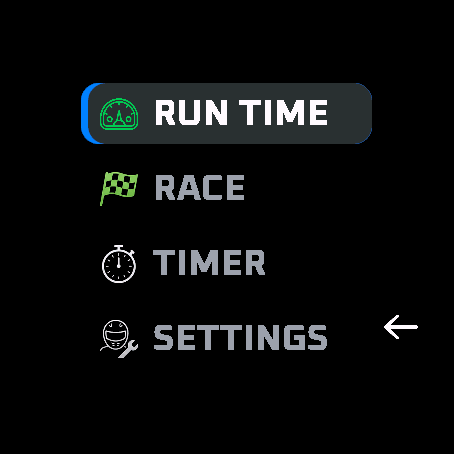
Four entries.
- Run Time, measures how long a full tank lasts.
- Race, plans the stops and runs the race.
- Timer, the lap timer on its own.
- Settings.
UP and DOWN move, START enters, BACK leaves.
Run Time
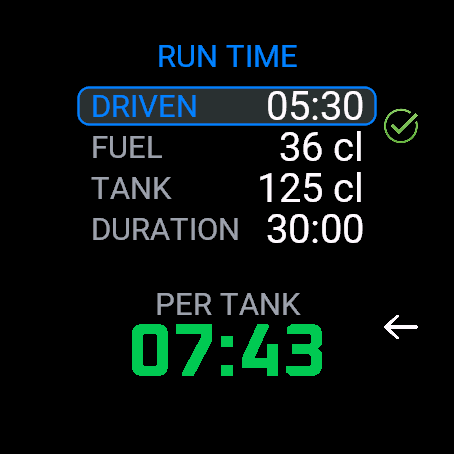
Works out the run time of one full tank from a measured stint. The figure changes with the engine setting, the track and the weather, so it is worth remeasuring after any change to the needle.
- DRIVEN, the length of the stint you just ran.
- FUEL, the quantity put back in to fill the tank.
- TANK, the tank size, read from Settings.
- DURATION, the length of the race being prepared.
- PER TANK, the result: run time of one full tank.
The result is written to Settings and used by the planner and the race screen.
UP and DOWN move between fields, START changes a value. The tick on the right indicates a usable figure.
Planner
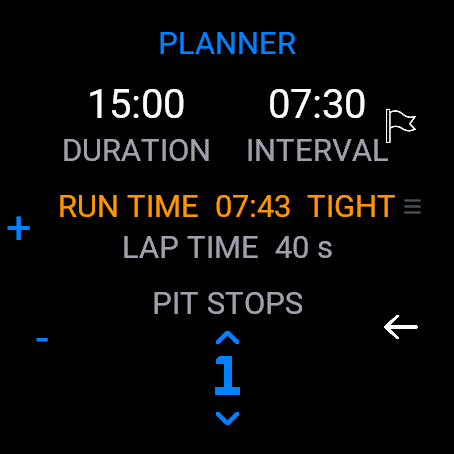
Computes the number of stops from the race duration and the run time, then lets you override it.
- DURATION, the length of the race.
- INTERVAL, the time between two stops. Computed, not entered.
- RUN TIME, from the Run Time screen or from Settings.
- LAP TIME, the average lap. Used for the lap count and the last lap alert.
- PIT STOPS, the number of stops. Changing it recomputes the intervals.
TIGHT in orange next to the run time means the plan leaves little margin against the tank. Adding a stop clears it.
Race

The countdown in the centre is the time to the next stop; its colour changes as the stop approaches. The ring around the screen empties over the stint.
The bar under the label carries one block per lap, matching the lap count written above it. The bar across the middle is the whole race, white flag to chequered flag, with the next stop marked in orange. Below: race time left, run time left in the tank, stops done out of those planned.
Buttons
- START, top right. Starts the race, then logs a pit stop. A stop logged by mistake can be undone within 3 seconds.
- LAP, bottom right. Marks a lap while the clock runs. Reverts to BACK once the clock is stopped. See the LAP button.
- UP and DOWN, left side. Move between the race pages: race, laps, tank, detail. They do not leave the race.
- Hold UP, ends the race, with a confirmation.
A race in progress is saved continuously. Leaving the app, swapping the battery or a crash do not lose it; it resumes at the point it stopped, elapsed time included.
Alerts
Staged vibration as the stop approaches, plus one alert for the last lap before the stop, timed on the average lap.
Adaptive pit plan
When enabled, a stop taken earlier or later than planned causes the remaining stops to be respread over the time left in the race. The countdown, the number of stops and the progress bar update immediately. Disable it in Settings to keep the original plan.
Last stint
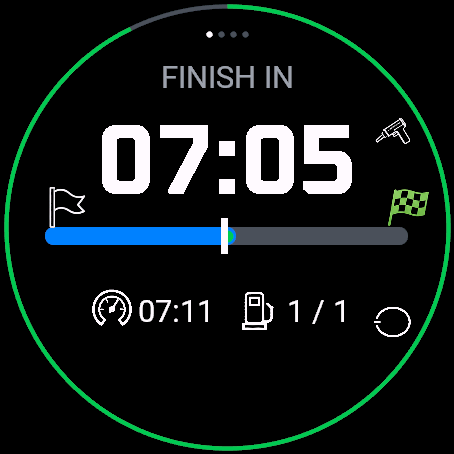
Once every planned stop is done, the countdown becomes FINISH IN: the time remaining to the chequered flag.
The LAP button
Press LAP, bottom right, each time the car passes the pit lane. One press per lap.
Effect
Each press records a lap time. Once enough laps are recorded, the app uses the measured average instead of the LAP TIME value from Settings, and converts the fuel countdown into a number of laps: PIT IN 6 LAPS.
A ~ before the number means the count still rests on the Settings value rather than on measured laps. It disappears once laps have been measured.
When the count changes
The lap count is computed from the next pass in front of the pits, not from the current instant. It therefore decreases at the pass and not during a lap.
- n, n laps remain, the current one included.
- 1, the current lap is the last one before the stop.
- 0, the fuel runs out before the next pass.
Laps excluded from the average
- The launch lap. The grid sits after the timing line, so the first pass is shorter than a full lap. Included, it would shorten the average and overstate the number of laps remaining. Excluded in race mode; in training there is no grid, so the first lap counts.
- The pit lap. A lap containing a refuel is lengthened by the stop.
- Missed or double presses. An interval that does not amount to one lap is not treated as a measurement.
Missed press
The count is not held waiting for the press. The estimated lap boundary is crossed on time and the number keeps moving; only the measurement is lost.
Lap Timer
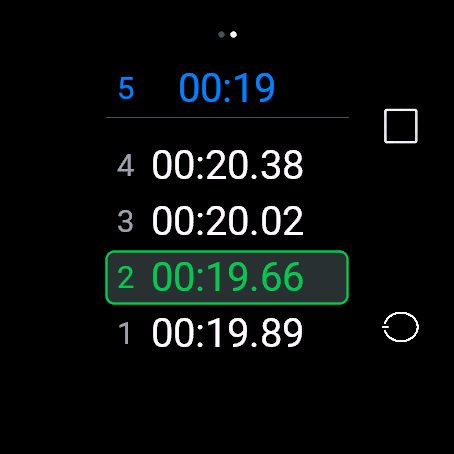
Current lap at the top, previous laps below, best lap of the session in green. Available from the home menu and as a page of the race screen.
- START, starts and stops the clock.
- LAP, bottom right, marks a lap while the clock runs; resets the session once stopped.
- UP and DOWN, scroll through the laps.
Best, last and average lap, lap count and total time are kept for the session, with a recap of each stint readable at any point in the race.
Outside a race there is no starting grid: the first lap is measured like any other.
Settings
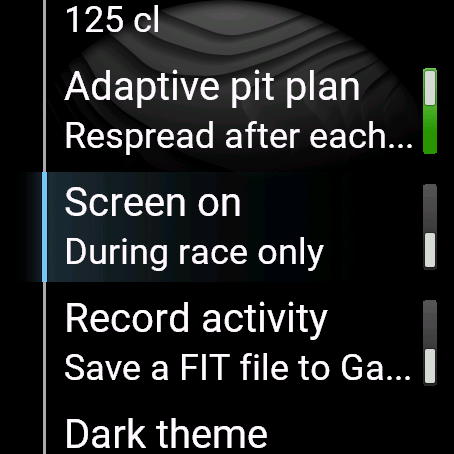
Ten entries, in menu order.
- Run time, the run time of one full tank. Set by the Run Time screen or edited here.
- Lap time, the average lap in seconds. Starting value for the lap count and the last lap alert, replaced by measured laps once available.
- Capacity, the tank size in centilitres. Used by the Run Time screen to derive consumption.
- Adaptive pit plan, sub-titled Respread after each stop. Switch, on by default.
- Screen on, sub-titled During race only. Switch. Keeps the display lit while a race runs, and only then.
- Record activity, sub-titled Save a FIT file to Garmin Connect. Switch, off by default. The watch asks at the flag whether to keep the session.
- Dark theme, six dark palettes. A list, not a switch.
- Licence, shows the races remaining or the purchased state, and how to buy. Reading it triggers nothing.
- Reset settings, with a confirmation. Does not affect the licence.
- About, version and copyright.
Language is not in the menu in version 1.0.0. The app follows the watch language, English or French.
Licence
The first five completed races are free, with every feature available. After that, a one-time purchase unlocks the app permanently. No subscription.
What counts as a race
A race is counted once it reaches its configured end. A start made by mistake, a heat abandoned, or a race stopped by hand are not counted.
The app does not block during a race, nor on a race being resumed. The check happens only when a new race is started.
Unlocking
The Licence screen shows a QR code and an 8 digit code. Scanning the QR opens the payment page with the code filled in; the code can also be typed at lsitech.fr/rpcg.
After payment, a watch connected to its phone unlocks within a minute. Without a connection, the page also returns an 8 digit key to enter on the watch under Settings → Licence → Enter key. That key is verified offline.
Scope
The licence survives uninstalling the app and resetting the watch. The key is also sent by email. A lost key can be reissued from the 8 digit code shown by the app.
A question, a lost key: lionel@lsitech.fr
Unlock the app ·
Legal notice ·
Privacy